When you are making big changes to a page, it's a good idea to duplicate the page then apply the changes to the live page. That way you don't loose the original, live page if you end up deciding not to go with your new design. It also gives you a space where you can leave things a bit messy while you work on it, since the page won't be linked to from anywhere on your site. But once you have designed your new page, you will want to quickly apply the new design to your live page. This is how you that.
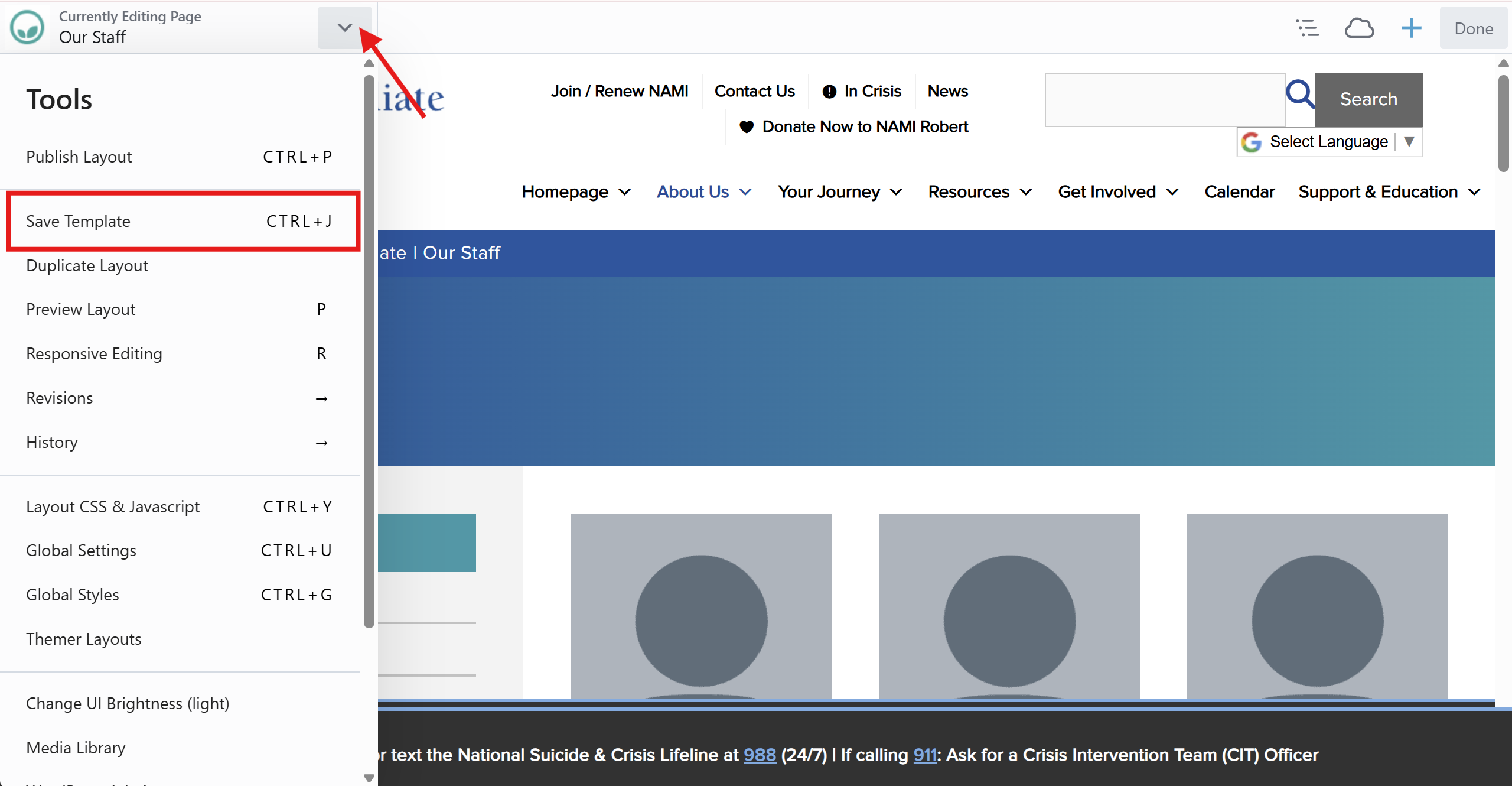
On your duplicated page where you have made the changes, open the page menu and click Save Template.
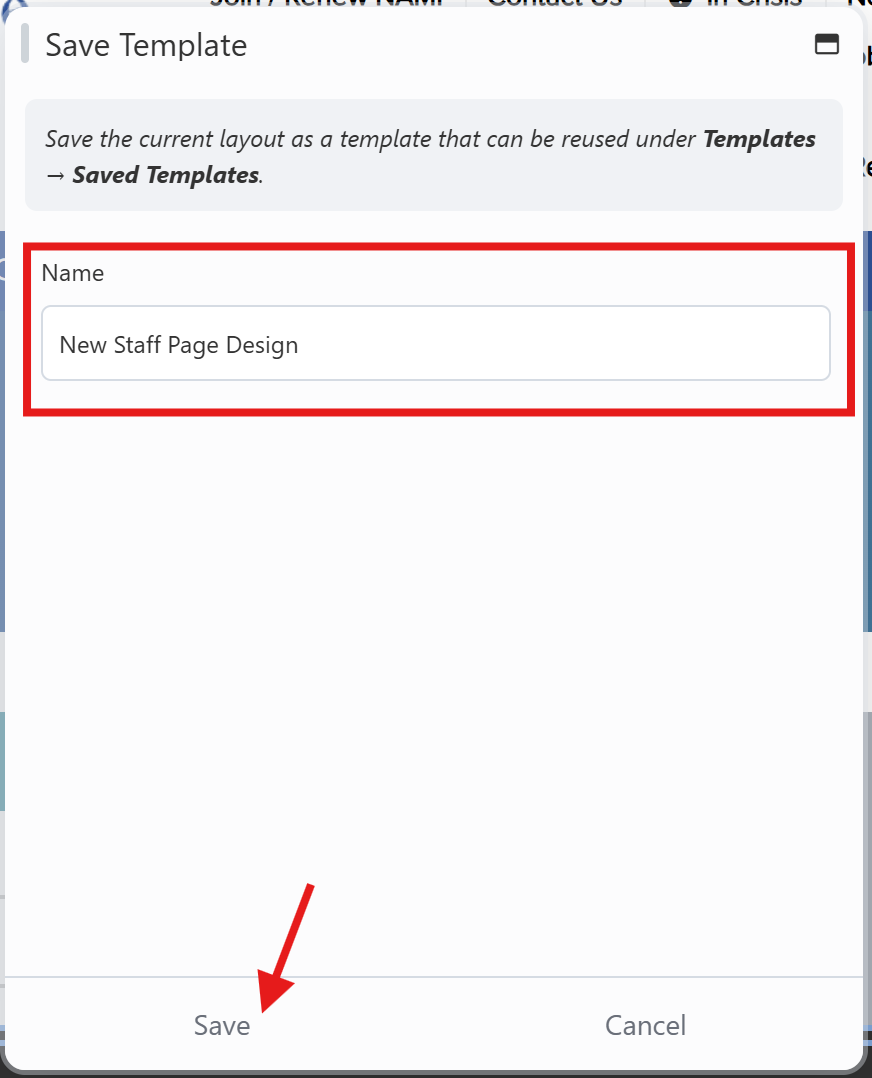
Don't forget to label the template as something unique, so you can recognize and find it!
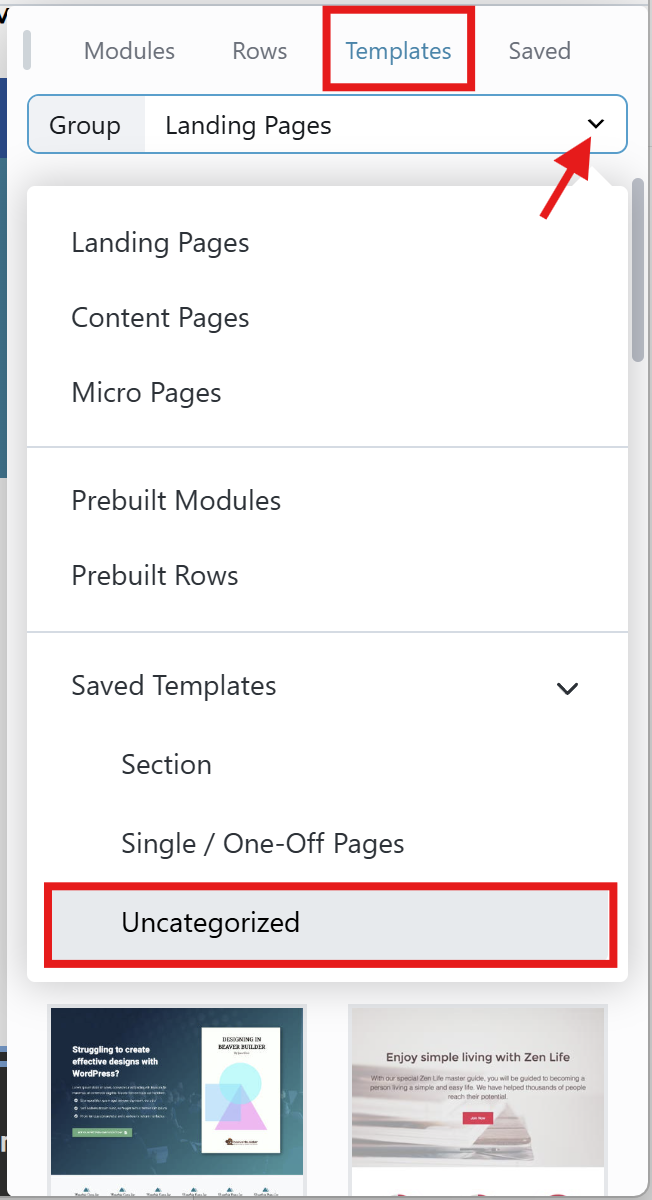
Next, go to the page you would like to apply the changes to. In the page builder, click on the Plus sign in the upper left corner, select Templates, then click on the dropdown menu and scroll down to Saved Templates and select Uncategorized.

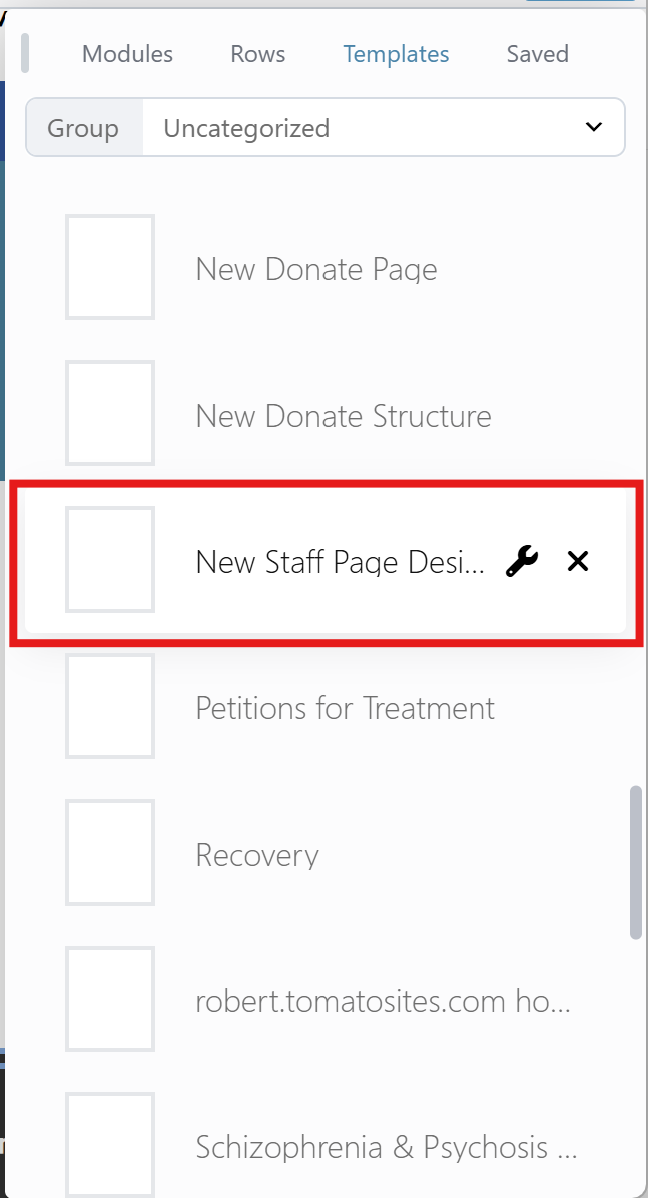
Scroll down until you find your saved template and select it.
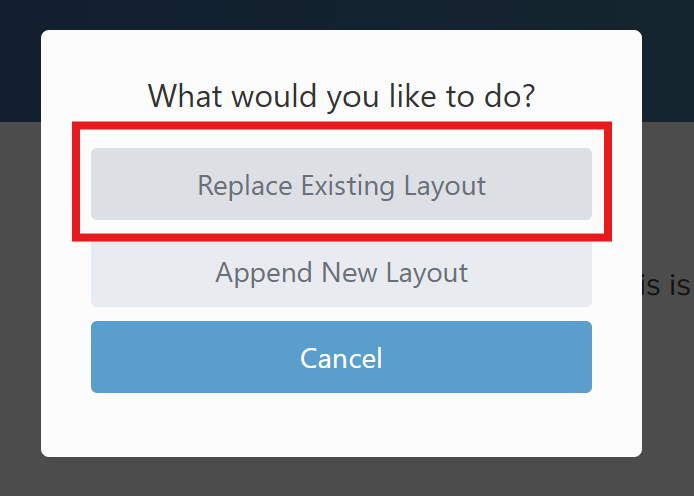
In the next window, select Replace Existing Layout to replace the current page with your newly created layout.
And you're done! Don't forget to publish the changes and clear your cache.
Was this article helpful?
That’s Great!
Thank you for your feedback
Sorry! We couldn't be helpful
Thank you for your feedback
Feedback sent
We appreciate your effort and will try to fix the article